Sản phẩm nổi bật
Draytek
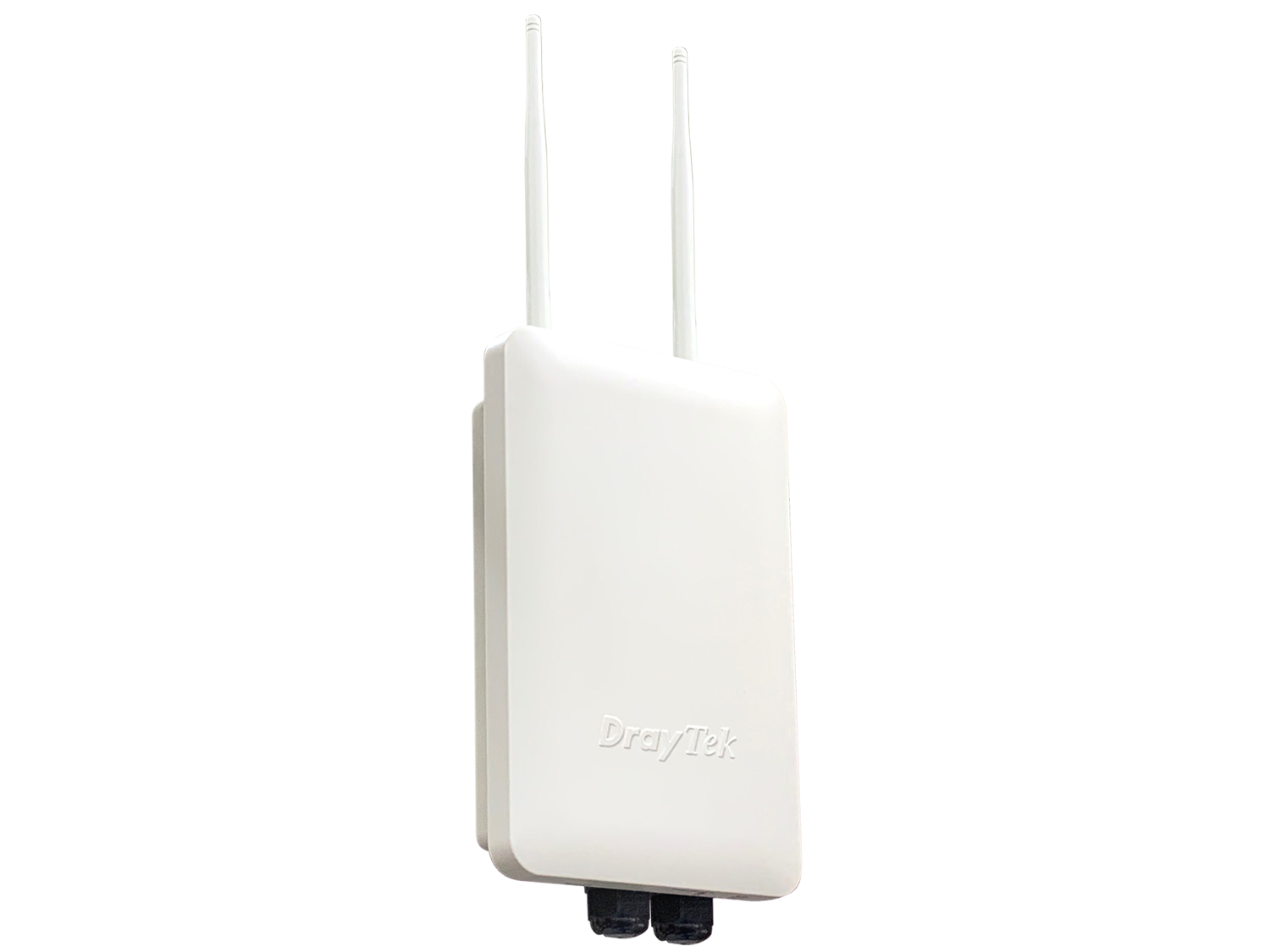
Thiết bị phát sóng wifi ngoài trời Draytek Vigor AP918R
Liên hệ
Yêu cầu báo giá
Giao hàng tận nơi
Thu tiền tận nơi trên toàn quốc
Đổi trả trong 7 ngày
Áp dụng cho một số sản phẩm
Bảo hành chính hãng
Đúng như mô tả của sản phẩm
 Hàng chính hãng
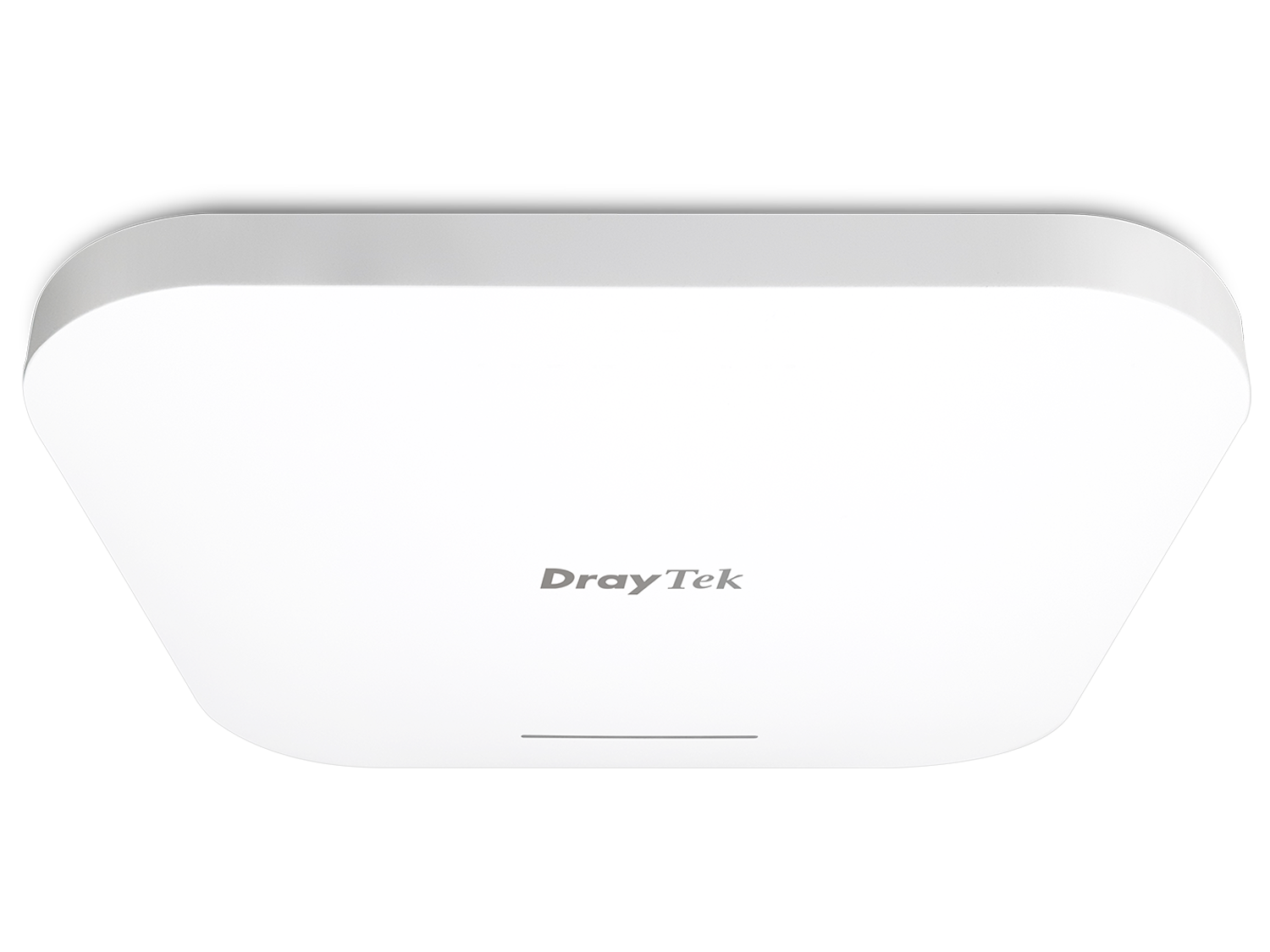
4x4 Dual Band WiFi 6 Ceiling AP
Giao hàng toàn quốc. Chúng tôi sử dụng các dịch vụ giao hàng và thanh toán tại nhà (COD) của Giaohangtietkiem, Viettel Post, GHN và những dịch vụ khác để giao hàng đến quý khách hàng trong thời gian sớm nhất.
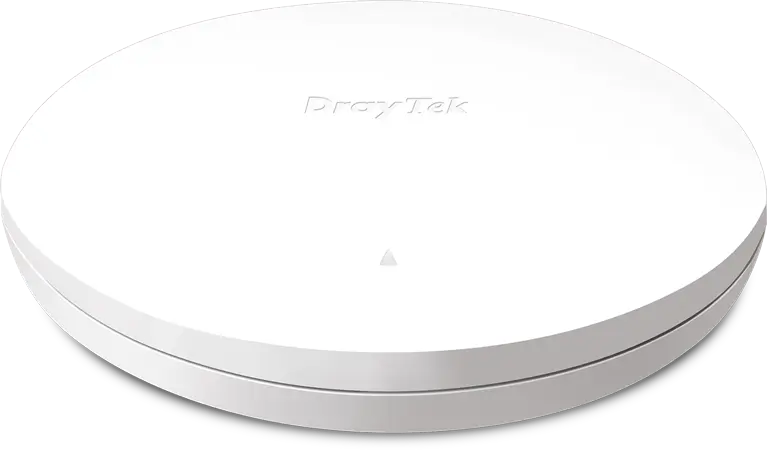
VigorAP 1060C is the most powerful wireless AP we’ve ever made. With 3.6 Gbps aggregated max link rate, it’s suitable for high density environments. It can be cloud-managed by VigorACS, and also act as the master AP to manage up to 50 node VigorAPs in LAN.
Concurrent 5GHz and 2.4GHz
& 1 x 2.4/5 GHz RF Analytics Band
Delivers link rate up to 3.6 Gbps
Acitve at maximum, 128 per radio
PoE Capable Port
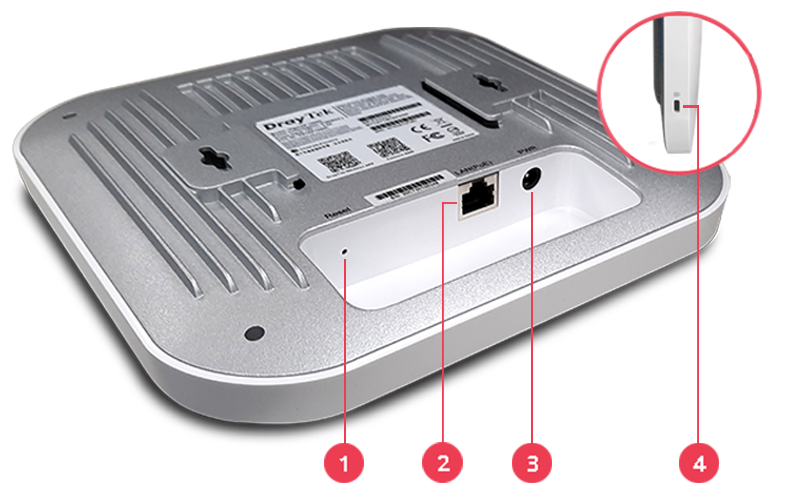
1Factory Reset Button
2LAN:2.5G/1G/100M/10M Base-T RJ-45
PoE-PD Support
3DC Power Input
4Security Lock

Easily link to other VigorAP to expand the wireless network. Learn more

Simplify the infrastructure by getting data and power through a single cable.

Mapping Wi-Fi clients to different VLANs and have a different set of security standards Learn how

Equalize the transmission time of each client so the legacy devices won't slow everyone down. Learn more

Redirect 5GHz-capable devices to the 5GHz radio to get a faster speed. Learn more

Solve the sticky client problem and improve Wi-Fi roaming experience. Learn more

Schedule Wi-Fi On and Off to control wireless access and save energy.

User profile database for local and external 802.1x authentication.

Market your business and communicate with the guests while offering hospitality WLAN. Learn more

Manage, maintain, and monitor VigorAP 1060C from the DrayTek routers. Learn more
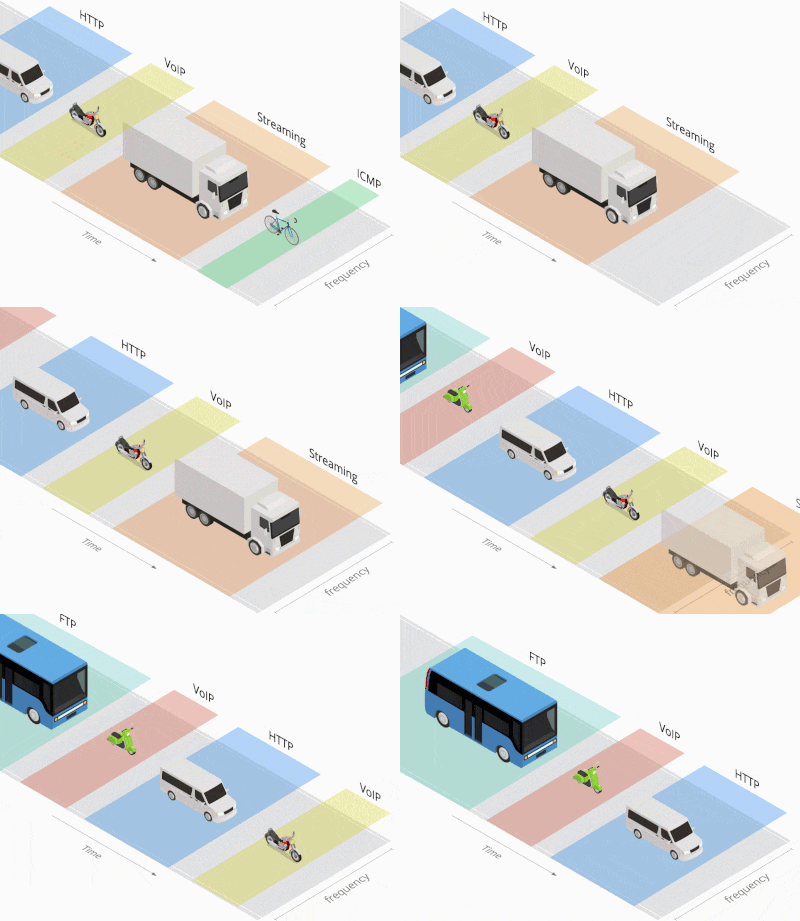
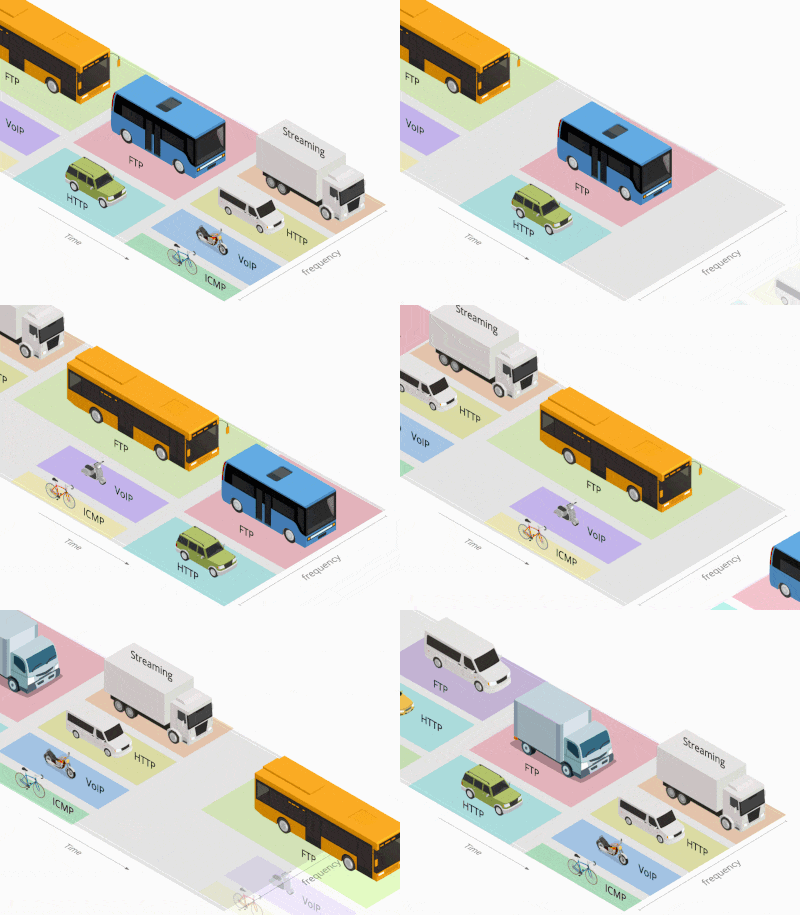
OFDMA has been used in LTE for many years, and is now available in 802.11ax for multi-user mode.
Traditionally with OFDM, each frame is transmitted across the entire channel width. With low-rate transmission still using the whole channel, it brings latency and jitter to others and lower the overall efficiency.
OFDMA splits a single transmission into groups of subcarriers, and each subcarrier can be used by different client. With multiple clients transmitting simultaneously in the same channel, it improves efficiency of every single transmission opportunity and thus increases the wireless experiences in high density environment.
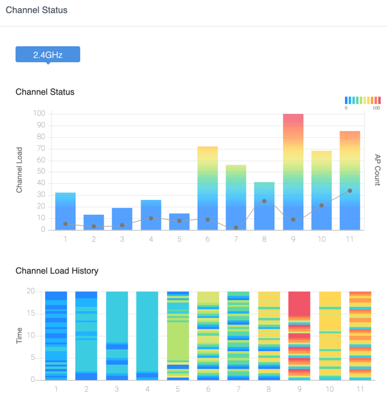
VigorAP 1060C with a dedicated third radio is able to constantly monitor on all channels for airtime availability and channel utilization. It will always show the 3 best quality channels for Admin’s selection.
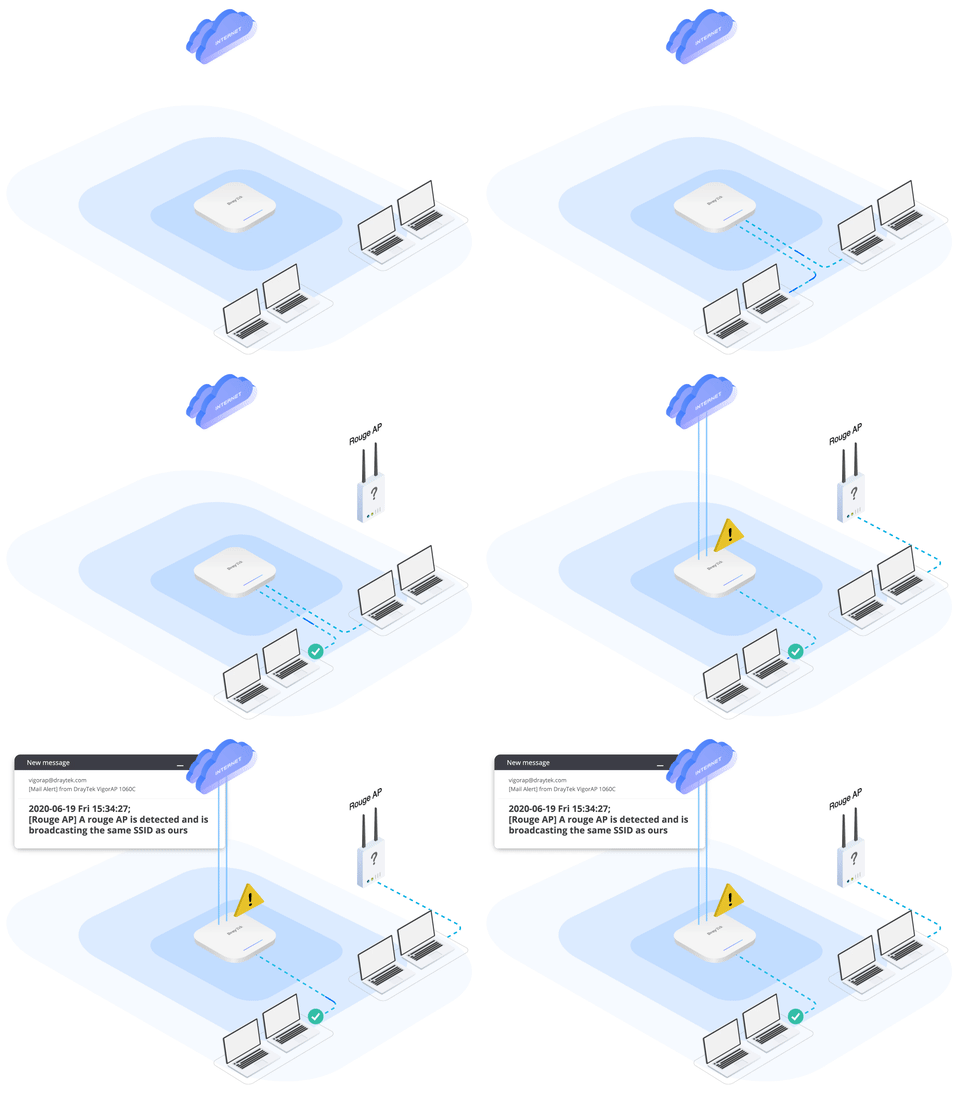
The radio can also keep monitoring on rouge AP. When detecting unknown AP broadcasting the same SSID, VigorAP 1060C can notify network admin for further action.
Working as NAS (network access server), VigorAP 1060C supports the 802.1x standard. It can redirect new clients to the designated portal server to go through the hotspot login process and receive corresponding RADIUS attributes and perform bandwidth limit and time limit accordingly. This function is ideal for retail, restaurants, coffee shops, and hospitality to do WiFi marketing and learn more about their clients.

The VigorAP records associated devices with signal strength, airtime, link rate, data usage, etc. Network admin can track clients connectivity and activities history on this single panel. If spotting suspicious activities, allow/block policies can also be made right away by MAC or device type.
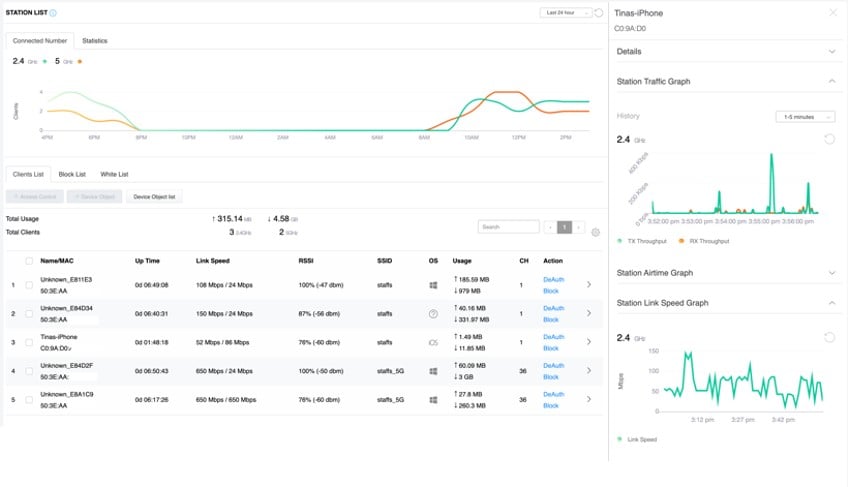
The VigorAP tracks MAC addresses from both associated and non-associated devices with signal strength. This information could help retails and hospitality customers to understand visitor behaviors, and to optimize their business with opening hours/marketing campaigns accordingly.
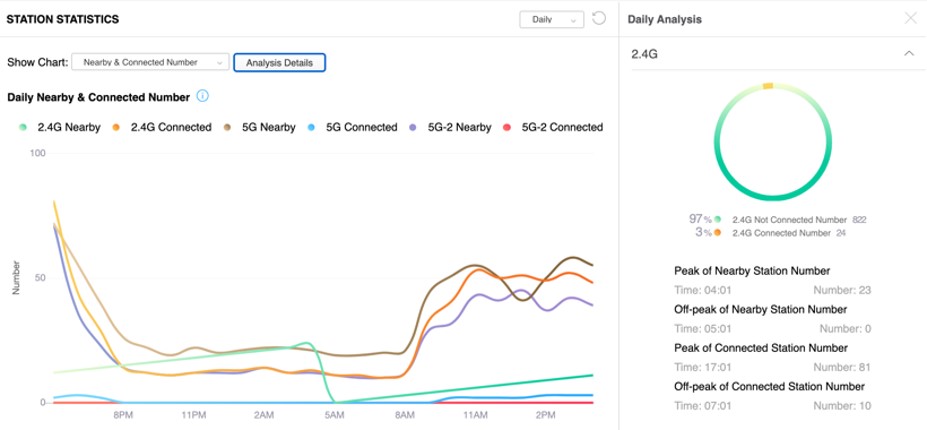
The VigorAP records associated devices with signal strength, airtime, link rate, data usage, etc. Network admin can track clients connectivity and activities history on this single panel. If spotting suspicious activities, allow/block policies can also be made right away by MAC or device type.
The VigorAP tracks MAC addresses from both associated and non-associated devices with signal strength. This information could help retails and hospitality customers to understand visitor behaviors, and to optimize their business with opening hours/marketing campaigns accordingly.
The VigorAP records associated devices with signal strength, airtime, link rate, data usage, etc. Network admin can track clients connectivity and activities history on this single panel. If spotting suspicious activities, allow/block policies can also be made right away by MAC or device type.
The VigorAP tracks MAC addresses from both associated and non-associated devices with signal strength. This information could help retails and hospitality customers to understand visitor behaviors, and to optimize their business with opening hours/marketing campaigns accordingly.
Solve the sticky client problem and improve WiFi roaming experience.
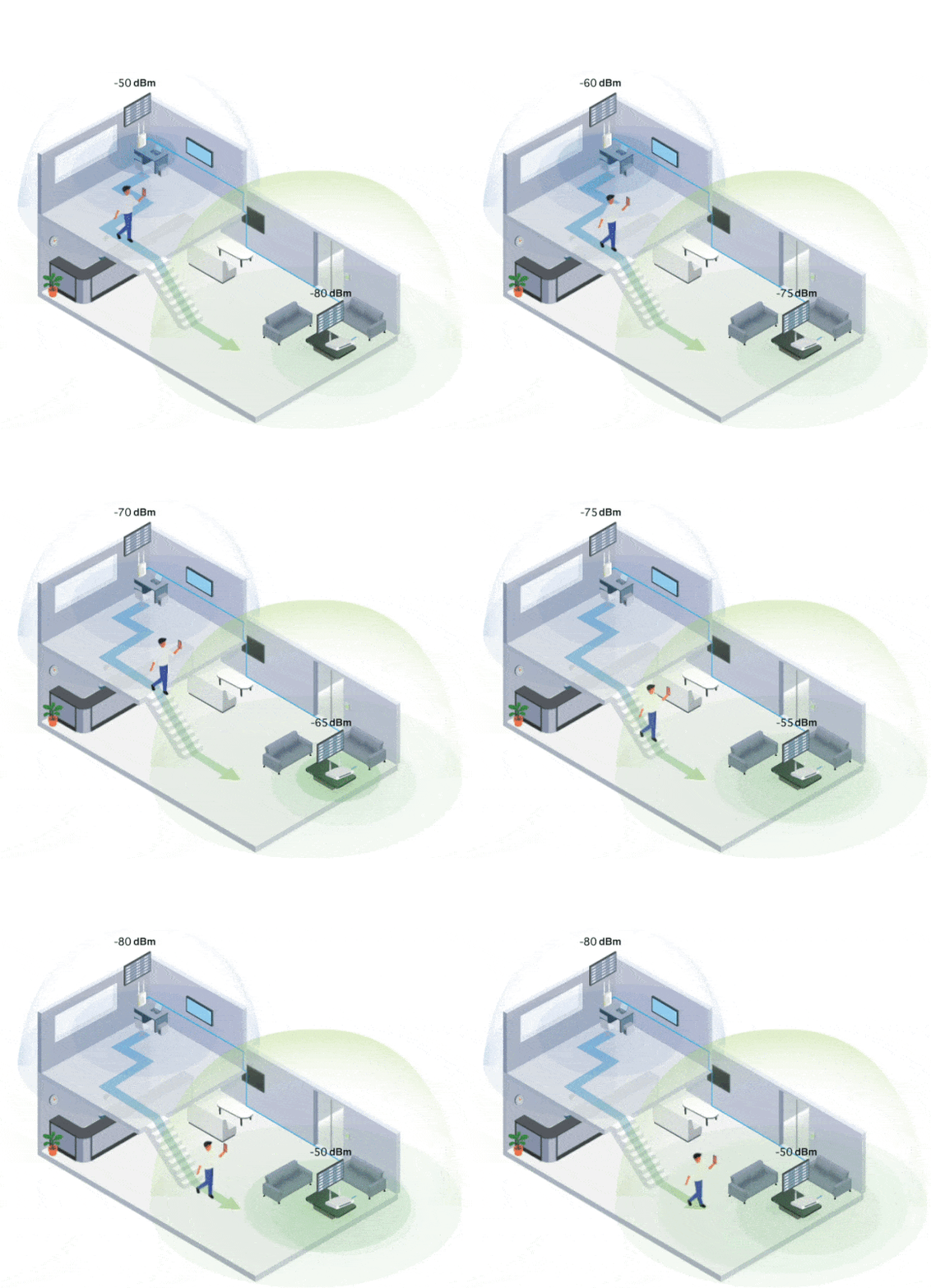
WiFi clients automatically hand-off to another AP/Router with a better signal strength when moving around in an area with multiple APs/Routers.
However, WiFi clients sometimes stick to the AP/Router with weak signal, and not switching to the one with better signal.
VigorAP will disassociate the WiFi clients who are out of the effective transmission range, forcing them to pick up another AP/Router with a stronger signal.
Furthermore, with "Minimum RSSI with Adjacent AP" option, VigorAP can disassociate the client only when other AP/router has a stronger wireless signal, and keep client stayed when there’s no other AP/Router nearby.
By using the "Minimum RSSI with Adjacent AP" option, the AP/Router on the same local subnet will exchange client information with each other, providing the choice to disassociate the client only when other AP detecting a stronger signal. Thus to keep the client stayed when there is no other AP nearby.
VigorAP 1060C is capable of working as the Root AP and manage up to 50 Node APs within the same LAN subnet.
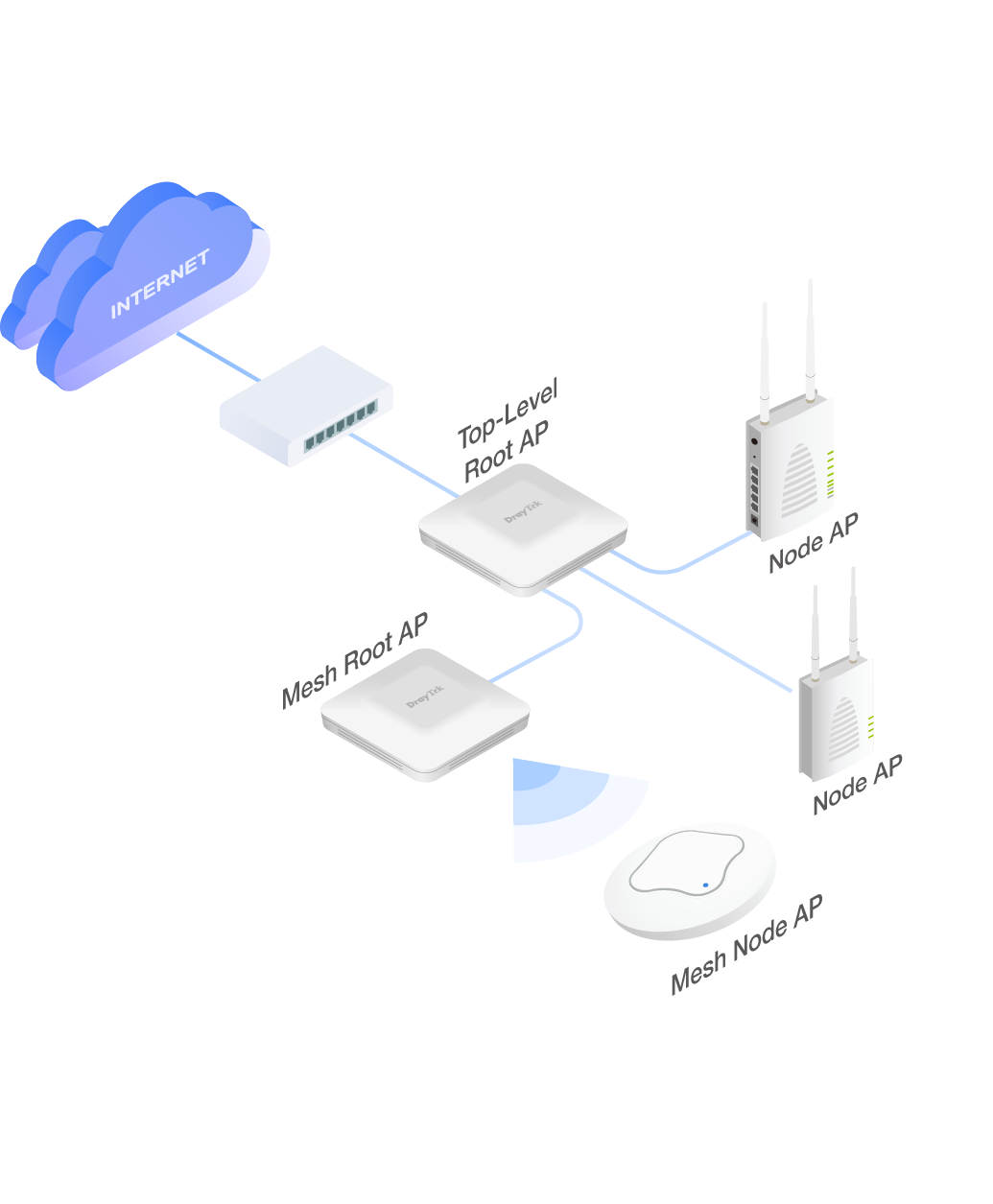
AP Management can work alongside with Mesh in a more top-level manner. Root AP can manage wired APs which operate in either AP mode or Mesh Root mode. After receiving provision from Root AP, Mesh Root can then synchronize configuration with its mesh members accordingly.
In small installation within 8 APs, Mesh with wired and wireless nodes is handy; while in larger installation, hybrid solution with AP management and Mesh is more competent.
Unlike the performance decay brought by mesh wireless uplink, Node AP with wired uplink constantly provides high performance experience, and thus we always suggest to use wired uplink when possible.
After auto-detecting and adding Node AP into management list, Root AP will provision relevant AP configurations to node APs.
Node APs are presented with IP address, operating channel, SSID of each radio, number of clients, and firmware version all in one page, and the AP offline can be easily spotted.
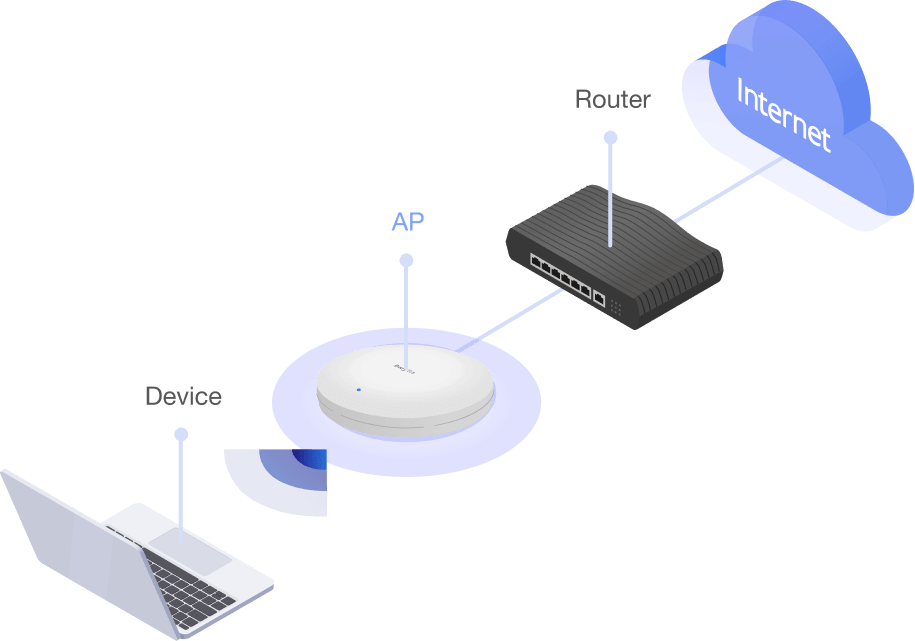
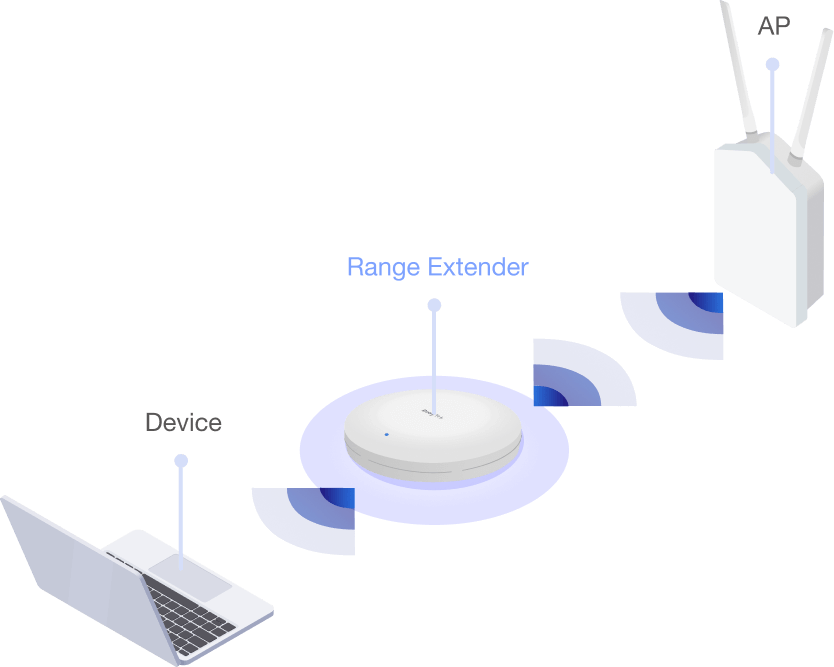
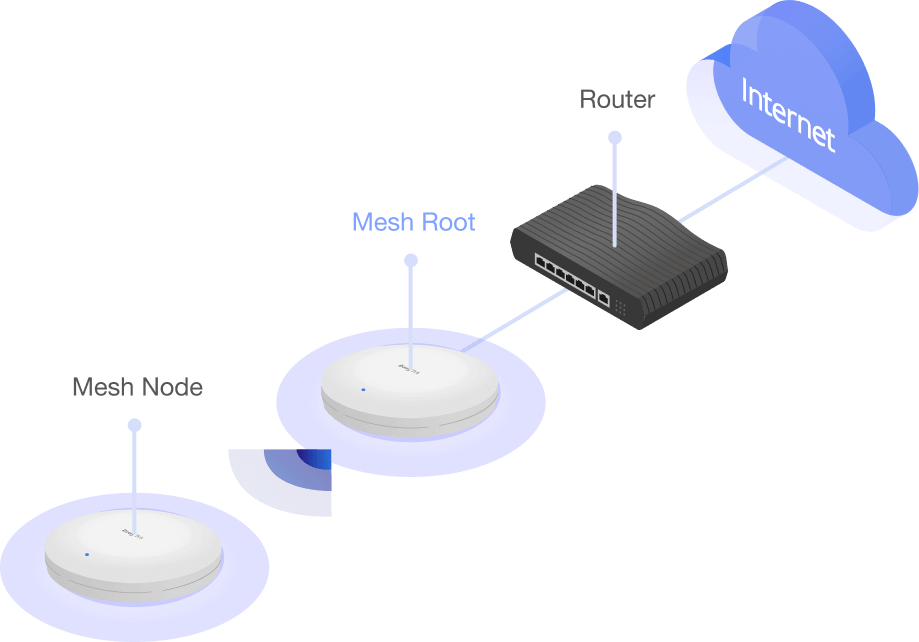
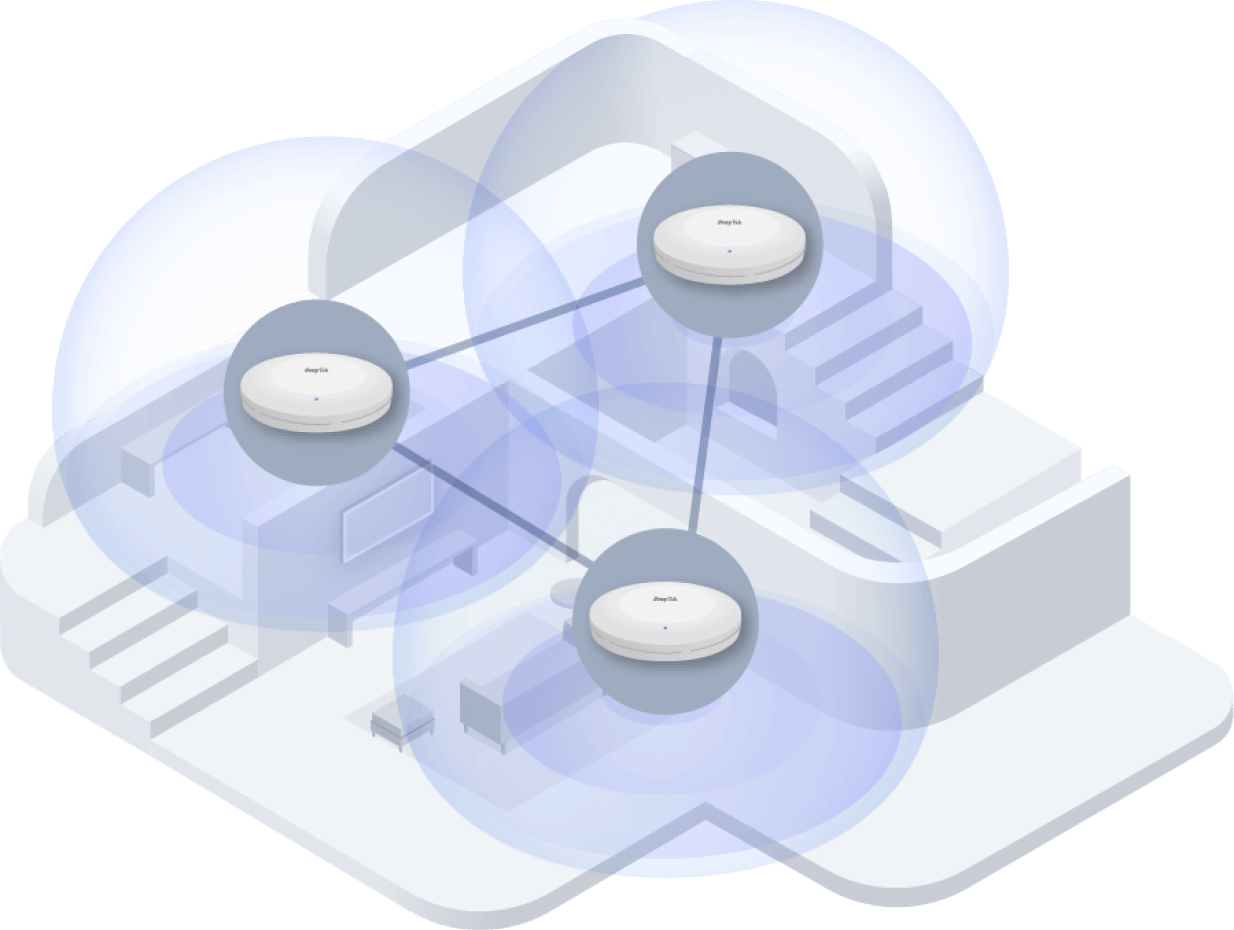
DrayTek Wireless app-support, Discovery, Auto-Provisioning, Monitoring, Centralized Hierarchy View
Discovery, Auto-Provisioning, Monitoring
Auto-Discovery, Profile-based Auto-Provisioning, Monitoring, Centralized View, Remote VigorAP Maintenance, WiFi Client Load Balancing
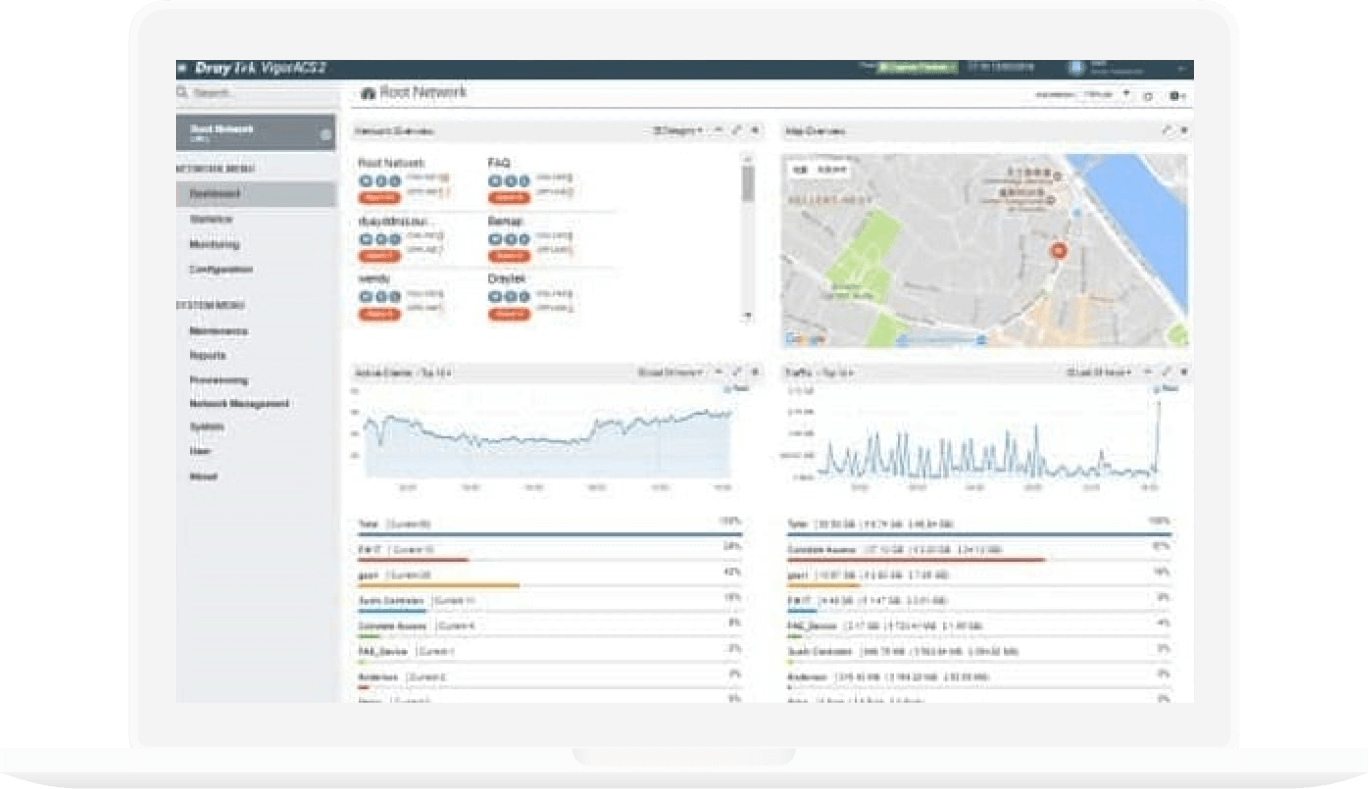
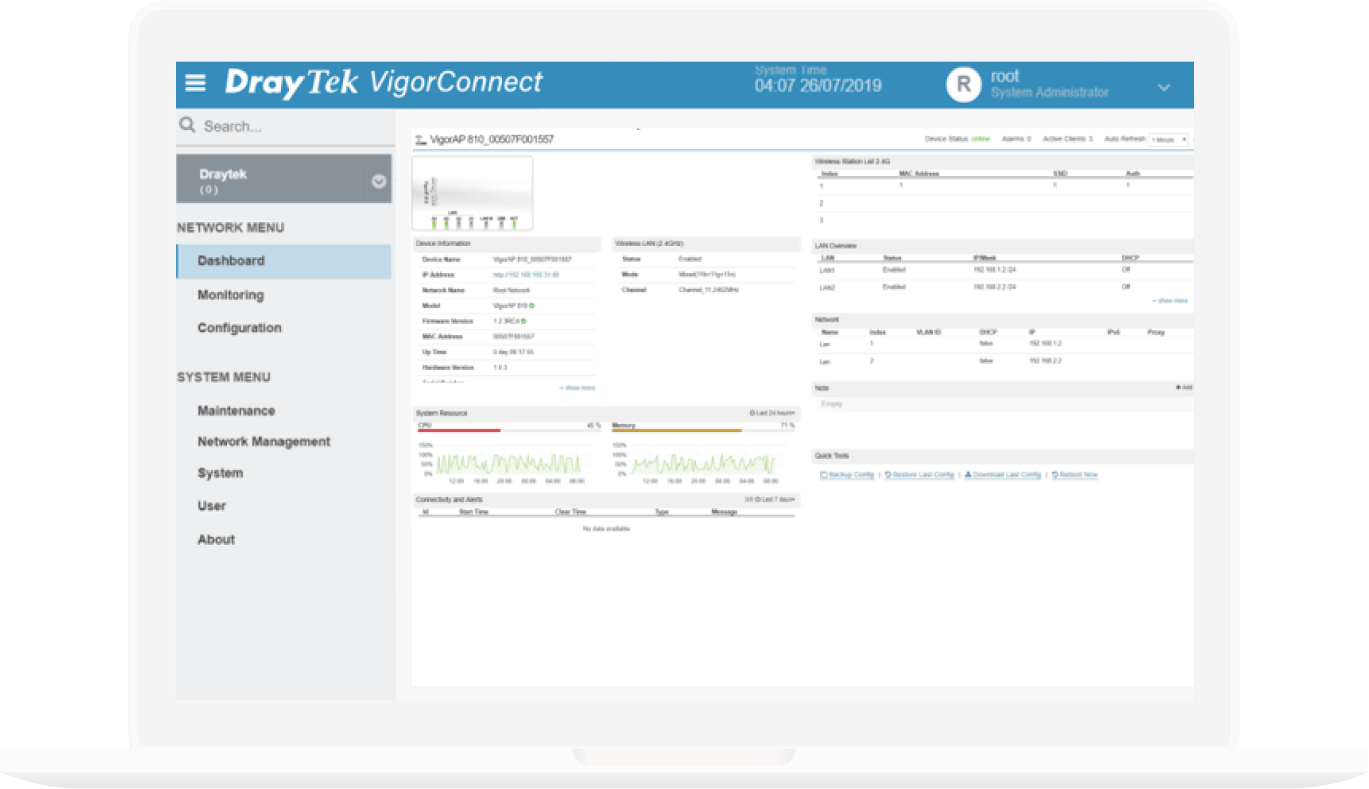
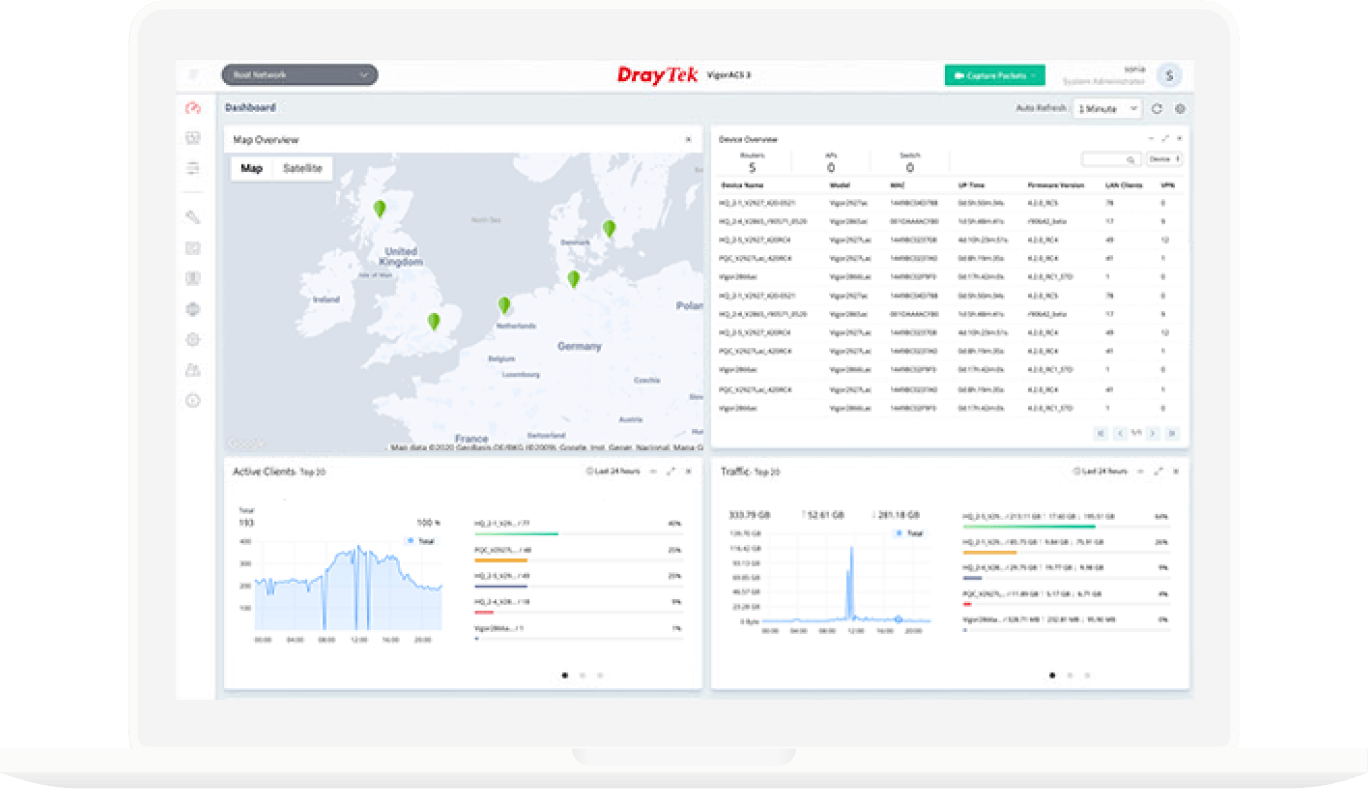


* wireless model only
Draytek
 -10%
-10%
Draytek
 -7%
-7%
 -3%
-3%
Draytek
 -10%
-10%
 -3%
-3%
 -5%
-5%